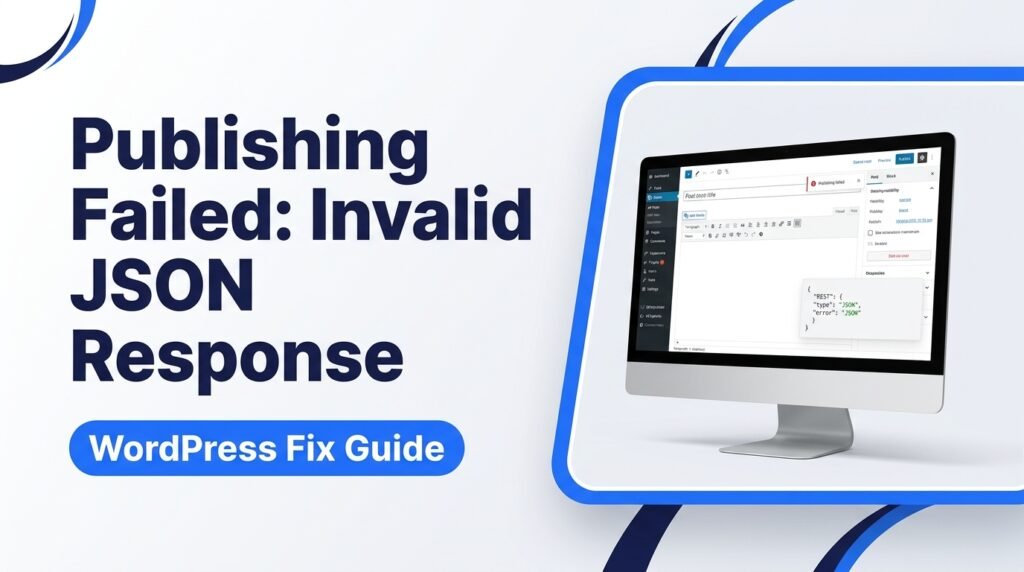
Have you ever finished writing a WordPress post, clicked the Publish button, and received this message?
Publishing failed. The response is not a valid JSON response.
This error can be frustrating, especially when you have spent hours preparing an article. You may still be able to open your website and use the WordPress dashboard, but your new posts or page updates will not save.
The good news is that this problem usually has a clear cause. It may be related to your REST API, permalink settings, website URL, security plugins, or hosting server.
In this guide, you will learn what the error means, why it happens, and how to fix it step by step without losing your content.
What Does Publishing Failed: The Response Is Not a Valid JSON Response Mean?
The Publishing Failed: The Response Is Not a Valid JSON Response error means WordPress expected to receive data in JSON format, but the server returned something different.
JSON stands for JavaScript Object Notation. It is a common format used by websites and applications to exchange information.
WordPress uses its REST API to communicate with the server when you publish or update a post through the Gutenberg editor.
For example, when you click Publish, WordPress sends a request to the server. The server should return a valid JSON response confirming that the post was saved.
However, if the server returns an error page, blocked request, unexpected message, or incorrect response, WordPress may show the invalid JSON error.
Example 1:
You write a 1,500-word article in WordPress. After clicking Publish, the editor displays Publishing failed. The response is not a valid JSON response.
This means WordPress could not process the response it received from the server. Your article may still be saved as a draft, so check your Posts section before trying again.
What Causes the WordPress Invalid JSON Response Error?
There is no single cause for this problem. Different website settings and server issues can produce the same error.
Here are the most common reasons.
1. Incorrect WordPress URL Settings
Your WordPress Address and Site Address should use the correct website URL.
For example, your website may use:
https://example.comhttps://www.example.com
If your WordPress settings use one version while your server redirects to another, REST API requests may fail.
An incorrect HTTP or HTTPS setting can also create problems.
Example 2:
Your WordPress Address uses
http://example.com, but your website loads throughhttps://example.com. When you publish a post, the browser follows a redirect and the editor receives an unexpected response.
This situation may cause the publishing error. Make sure both website addresses use the correct HTTPS version.
2. Broken Permalink Settings
Permalinks are the permanent URLs assigned to your posts and pages.
WordPress uses rewrite rules to handle these URLs. If the rules are broken or missing, the REST API may return a 404 error instead of the expected JSON data.
This can happen after:
- Changing permalink settings.
- Moving your website to another host.
- Editing server configuration files.
- Installing or changing certain plugins.
- Migrating WordPress to a new domain.
Example 3:
You move your website from one hosting company to another. Your homepage works, but publishing new articles produces an invalid JSON error.
Your new server may not have the correct rewrite rules. Saving your permalink settings again can help rebuild them.
3. Plugin Conflicts
Some WordPress plugins can interfere with requests sent by the editor.
This may happen with:
- Security plugins.
- Caching plugins.
- Performance optimization plugins.
- REST API management plugins.
- Plugins that change the WordPress editor.
A plugin may block a request or add unwanted text to the server response.
Example 4:
You install a new security plugin. After activation, WordPress stops publishing new posts and displays the invalid JSON response error.
The plugin may be blocking the request. Temporarily testing your plugins can help identify the problem.
4. Security Firewall or ModSecurity Blocking Requests
A Web Application Firewall (WAF) protects websites from suspicious requests.
However, some firewall rules may block valid WordPress REST API requests.
ModSecurity is a server security system that can also block requests if its rules identify them as suspicious.
When this happens, the server may return a 403 Forbidden page instead of the JSON response WordPress expects.
Example 5:
You can open your WordPress dashboard and edit posts, but clicking Publish produces a 403 error in the browser’s Network tab.
This may indicate that your hosting firewall or security plugin is blocking the publishing request. Ask your hosting provider to check the firewall logs before changing security settings.
5. SSL Certificate or HTTPS Problems
An SSL certificate helps protect the connection between your website and its visitors.
If your website has an incorrect SSL setup, mixed HTTP and HTTPS settings, or redirect problems, WordPress may fail to communicate with the REST API.
Common signs include:
- Redirect loops.
- Incorrect website URLs.
- HTTPS certificate warnings.
- Requests going to the wrong website address.
Example 6:
You recently installed an SSL certificate, but your WordPress Address still uses HTTP. Your website redirects visitors to HTTPS, while some WordPress requests use the old address.
Correcting the website URLs and checking your HTTPS redirects may resolve the issue.
6. PHP Errors or Incorrect Server Responses
PHP is the programming language WordPress uses.
A PHP warning, fatal error, or unexpected output from a plugin or theme can interrupt a REST API response.
For example, a plugin may print an error message before the JSON data. WordPress then receives an invalid response.
Other possible server issues include:
- PHP memory exhaustion.
- Server timeouts.
- Incorrect PHP configuration.
- Missing server rewrite rules.
- Temporary hosting problems.
Example 7:
You update a plugin, and WordPress starts showing a publishing error. Your hosting error log contains a PHP fatal error related to that plugin.
In this situation, the plugin error needs to be fixed before normal publishing can continue.
How to Fix Publishing Failed: The Response Is Not a Valid JSON Response
Follow these solutions in order. Start with the simple checks before changing plugins or server files.
Fix 1: Save Your Permalink Settings Again
This is one of the easiest fixes to try.
WordPress can rebuild its permalink rules when you save the permalink settings.
Follow these steps:
- Log in to your WordPress dashboard.
- Open Settings.
- Click Permalinks.
- Check your current permalink structure.
- Do not change it unnecessarily.
- Click Save Changes.
- Return to your post editor.
- Try publishing your article again.
Example 8:
Your website uses the Post name permalink structure. You open Settings → Permalinks and click Save Changes without changing anything. WordPress refreshes its rewrite rules, and publishing starts working again.
If this does not fix the problem, move to the next solution.
Fix 2: Check Your WordPress Address and Site Address
Incorrect website URLs can interrupt communication between WordPress and the server.
To check them:
- Open your WordPress dashboard.
- Go to Settings → General.
- Find WordPress Address (URL).
- Find Site Address (URL).
- Check that both use your correct domain.
- Confirm that both use HTTPS if your website has a working SSL certificate.
For example:
- WordPress Address:
https://example.com - Site Address:
https://example.com
The correct values depend on your website setup. Do not change them blindly, especially if WordPress is installed in a separate directory.
Fix 3: Check Whether the REST API Is Working
The WordPress REST API handles communication between the editor and the server.
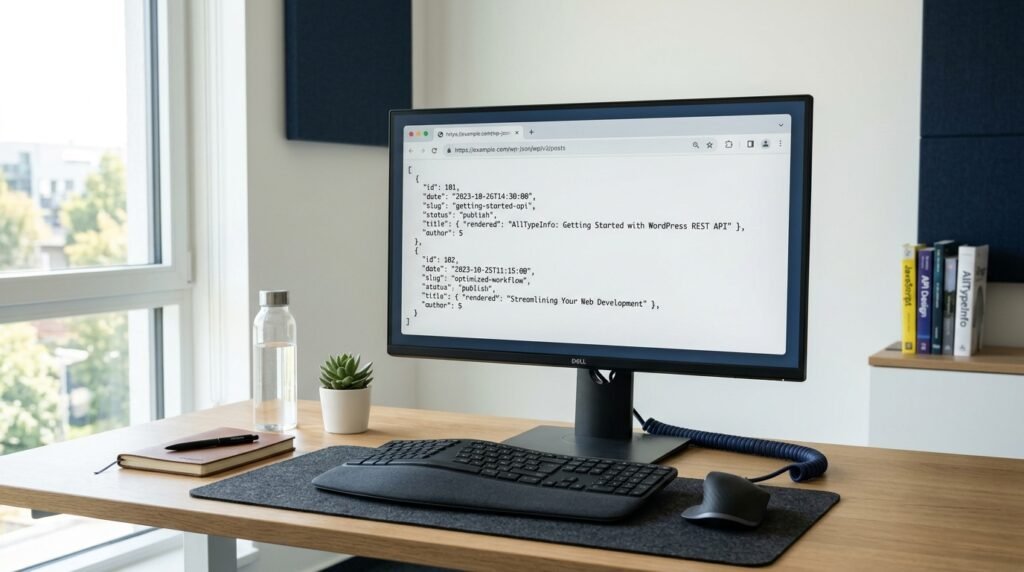
You can perform a simple test.
- Open a new browser tab.
- Enter your website address followed by
/wp-json/. - Press Enter.
- Check the response.
For example:
A working endpoint should display structured JSON data.
If you see a 404 page, 403 error, login page, redirect loop, or blank response, something may be blocking the REST API.
Example 9:
You visit
https://example.com/wp-json/and receive a 404 Not Found message instead of JSON data.
This suggests a problem with your permalink rules, server configuration, or REST API access. Contact your hosting provider if you cannot identify the cause.
Fix 4: Clear WordPress and Server Cache
Old cached data can sometimes interfere with WordPress requests.
Clear the following caches where applicable:
- WordPress caching plugin.
- Hosting server cache.
- CDN cache.
- Browser cache.
If your hosting provider offers an object cache, you can also clear it temporarily for testing.
After clearing the cache:
- Log out of WordPress.
- Log back in.
- Open your article.
- Try publishing again.
Example 10:
You recently changed your website settings, but an old cached response is still being served. Clearing the relevant caches may help WordPress receive the correct server response.
Fix 5: Temporarily Deactivate Your Plugins
A plugin conflict is another possible reason for the invalid JSON response.
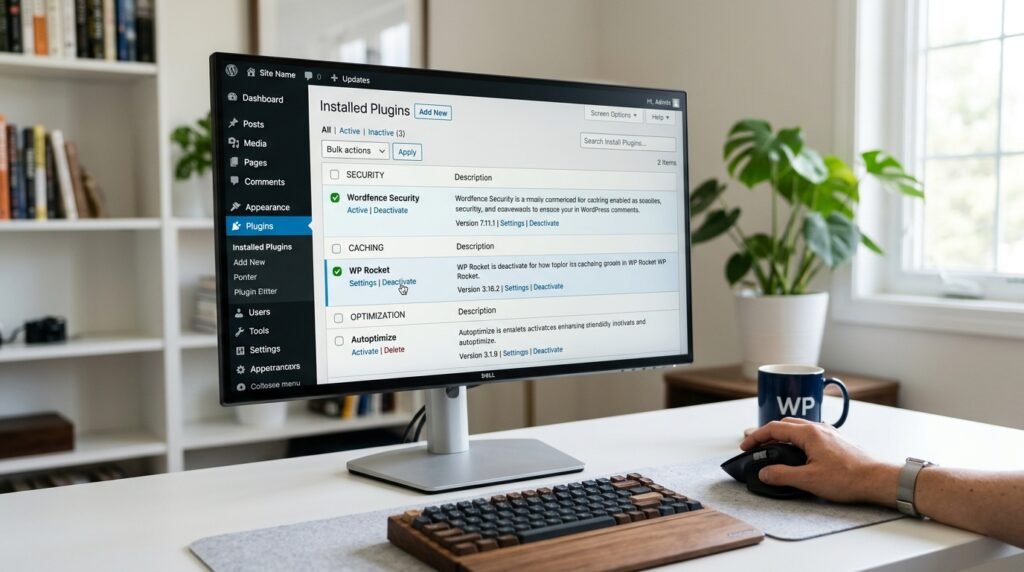
You can test this without deleting your plugins.
- Open Plugins → Installed Plugins.
- Make a note of your active plugins.
- Temporarily deactivate them.
- Try publishing a test post.
- If publishing works, reactivate your plugins one by one.
- Test publishing after each activation.
When the error returns, the last activated plugin may be causing the problem.
Pay special attention to security, caching, optimization, and REST API plugins.
Example 11:
You deactivate your caching plugin, and the WordPress editor starts publishing posts normally. After activating it again, the error returns.
This suggests that the caching plugin or one of its settings may be interfering with the publishing request. Check its settings or contact its support team.
Do not leave essential security plugins disabled. Use this test only for a short time.
Fix 6: Check Your WordPress Theme
Your active theme can also cause problems if it contains incorrect code or conflicts with WordPress.
To test it:
- Open Appearance → Themes.
- Make sure a default WordPress theme is available.
- Temporarily activate the default theme.
- Try publishing a test post.
- Check whether the error disappears.
If publishing works, your original theme may be involved.
Contact the theme developer or check for an available update.
Example 12:
You switch from your current theme to a default WordPress theme. The publishing error disappears.
This suggests a possible theme conflict. Check the theme’s latest version and its error logs before making further changes.
Fix 7: Check Your SSL Certificate
If you recently moved your website or installed SSL, verify that your HTTPS setup is correct.
Check the following:
- Your SSL certificate is active.
- Your website loads through HTTPS.
- WordPress Address uses the correct HTTPS URL.
- Site Address uses the correct HTTPS URL.
- Your website does not have a redirect loop.
If your hosting dashboard manages SSL, check its certificate status.
Do not force additional redirects or change server rules without checking your current setup.
Fix 8: Check Your Hosting Server and Firewall
If the earlier solutions do not work, the problem may be on the hosting server.

Ask your hosting provider to check:
- REST API requests.
- ModSecurity or WAF rules.
- Server error logs.
- PHP fatal errors.
- Server rewrite rules.
- Request timeouts.
- HTTP response codes.
You can send this message to your hosting support team:
Example 13:
I am receiving the WordPress error “Publishing failed. The response is not a valid JSON response.” Please check whether my WordPress REST API requests are being blocked by ModSecurity, the server firewall, or any server configuration rule. Please also check the PHP and server error logs for failed publishing requests.
Providing the exact error message will help the support team investigate the issue.
Fix 9: Check the Failed Request in Browser Developer Tools
If you still cannot find the cause, inspect the request that fails when you click Publish.
This method can help identify the actual problem instead of guessing.
Follow these steps:
- Open your WordPress post editor.
- Press F12 on your keyboard.
- Select the Network tab.
- Try publishing your post again.
- Look for a failed request containing
/wp-json/. - Click the failed request.
- Check its status code and Response section.
Here is what some common status codes may indicate:
| Status Code | Possible Meaning |
|---|---|
| 400 | Bad request or invalid request data |
| 401 | Authentication problem |
| 403 | Access denied or firewall block |
| 404 | Missing REST API endpoint or incorrect rewrite rules |
| 500 | Internal server error |
| 502 | Bad gateway |
| 503 | Server temporarily unavailable |
These codes are clues, not final diagnoses. Check the response body and server logs to find the real cause.
Example 14:
Your browser’s Network tab shows that a WordPress publishing request returns HTTP 403. The response contains a security block page.
This points to a possible firewall or security rule. Your hosting provider can check the relevant logs and allow the legitimate request if appropriate.
How to Prevent the Invalid JSON Response Error
You can reduce the chance of this error by following a few basic WordPress maintenance practices.
Keep WordPress and Plugins Updated
Use current, compatible versions of WordPress, themes, and plugins.
Before major updates, create a complete website backup.
Check Your Website URLs After Migration
After moving your website to another hosting provider, check:
- WordPress Address.
- Site Address.
- SSL certificate.
- Permalink structure.
- REST API access.
Avoid Installing Too Many Plugins
Install plugins only when you need them. Remove plugins that you no longer use.
Also, check plugin compatibility before installing new tools.
Monitor Website Health
Open Tools → Site Health in your WordPress dashboard.
Check for REST API errors, server problems, and other technical warnings.
Create Regular Backups
A backup protects your articles, pages, images, and database.
Keep a recent backup before changing important settings, editing server files, or updating major plugins.
What Should You Do If None of the Fixes Work?
If the error continues after these steps, avoid making random changes to your WordPress installation.
Instead, follow this approach:
- Check the failed REST API request.
- Record its HTTP status code.
- Read the response body.
- Check WordPress Site Health.
- Review PHP and server error logs.
- Ask your hosting provider to inspect firewall and server settings.
- Contact the plugin or theme developer if the logs point to a specific product.
Keep a copy of your article before performing any tests. If the editor is not saving your content, copy the text into a separate document.
This will help protect your work while you troubleshoot the problem.
Frequently Asked Questions
1. Why does WordPress say the response is not a valid JSON response?
WordPress displays this error when the editor receives an unexpected response instead of valid JSON data. Common causes include REST API problems, broken permalinks, plugin conflicts, firewall blocks, and server errors.
2. How do I fix the WordPress invalid JSON response error quickly?
Start by opening Settings → Permalinks and clicking Save Changes. Then check your website URLs, visit /wp-json/, and clear your cache. If the error continues, investigate plugins and server settings.
3. Can a plugin cause the publishing failed error?
Yes. A security, caching, optimization, or other plugin may interfere with WordPress publishing requests. Temporarily deactivate plugins one at a time to identify a possible conflict.
4. Does the invalid JSON response error mean my article is deleted?
No. It does not automatically mean your article has been deleted. Check Posts → All Posts and look for your article under Drafts or Published posts. However, your latest changes may not have been saved.
5. What is the WordPress REST API?
The WordPress REST API allows WordPress and other applications to exchange information. The Gutenberg editor uses it to save and update posts, pages, and other content.
6. Can broken permalinks cause a JSON response error?
Yes. Incorrect rewrite rules can prevent WordPress from loading REST API endpoints correctly. Saving your permalink settings again may rebuild the rules and fix the problem.
7. Why does my WordPress website work but publishing does not?
Your website’s public pages and publishing system use different requests. Your homepage may load normally even when the REST API request used by the editor is blocked or returning an error.
8. Should I disable my security plugin to fix this error?
You can temporarily deactivate it for a controlled test, but do not leave your website unprotected. If the error disappears, check the plugin’s firewall settings or contact its support team.
9. Can hosting migration cause the invalid JSON response error?
Yes. A hosting migration can change server rewrite rules, SSL settings, firewall rules, or PHP configuration. Check these settings after moving your WordPress website.
10. How do I check if the WordPress REST API is working?
Open your website’s /wp-json/ address in a browser. A working public REST API endpoint should return JSON data. If it returns an error page or another unexpected response, investigate the server or WordPress configuration.
Conclusion
The Publishing Failed: The Response Is Not a Valid JSON Response error usually means WordPress is receiving an unexpected response from the server while trying to save your content.
The best way to fix it is to check the problem step by step. Start with permalink settings, website URLs, and the REST API. Then check your cache, plugins, theme, SSL certificate, and hosting server.
If none of these solutions works, inspect the failed request in your browser’s Network tab. Its status code and response can help you find the actual cause.
One useful tip: Always keep a backup of your WordPress website and save a copy of your article before making technical changes. This helps protect your content while you fix the problem.

Emily Carter (Content Writer & Communication Specialist) is a content writer and communication specialist at AllTypeInfo.com. She writes clear, practical, and easy-to-follow guides on email responses, message replies, writing templates, and everyday communication tips. Her goal is to help readers communicate with confidence in both personal and professional settings.