Have you ever opened a website, clicked a button, or tried to use an app and suddenly seen the message Invalid Response Received? This error can be confusing because it does not explain what went wrong or how to fix it.
In most cases, this message means that a website, app, or device received information that it could not process correctly. The issue may come from a weak internet connection, a server problem, an expired login session, or an unexpected response from an online service.
The good news is that some causes are easy to fix. In this guide, you will learn what Invalid Response Received means, why it happens, and which steps can help you solve it.
What Does Invalid Response Received Mean?
Invalid Response Received is an error message that appears when an app, browser, website, or connected service gets a response that it cannot accept or process.
In simple terms, your device sends a request, but the other side sends information that does not match what the device expects.
For example, a website may expect a response in JSON format, which is a common way to send data between computers. However, the server may return an HTML error page instead. The website may fail to process that information and display an error.
This issue can happen on:
- Websites and web browsers.
- Mobile apps.
- Online banking platforms.
- Payment services.
- Email applications.
- Software connected to an API.
- Online shopping websites.
- Cloud-based services.
The exact meaning depends on the app or website showing the message. It is not one universal error code.
Example 1:
You open an online shopping website, click the checkout button, and receive an Invalid Response Received message instead of the payment page.
This may happen because the payment service returned unexpected information or the connection failed during the request.
Example 2:
You try to log in to an app, but it displays Invalid Response Received after you enter your account details.
The app may have received an unexpected server response, or your login session may have expired.
What Causes the Invalid Response Received Error?
There are several reasons why this error may appear. Finding the cause can help you choose the right fix instead of trying random solutions.
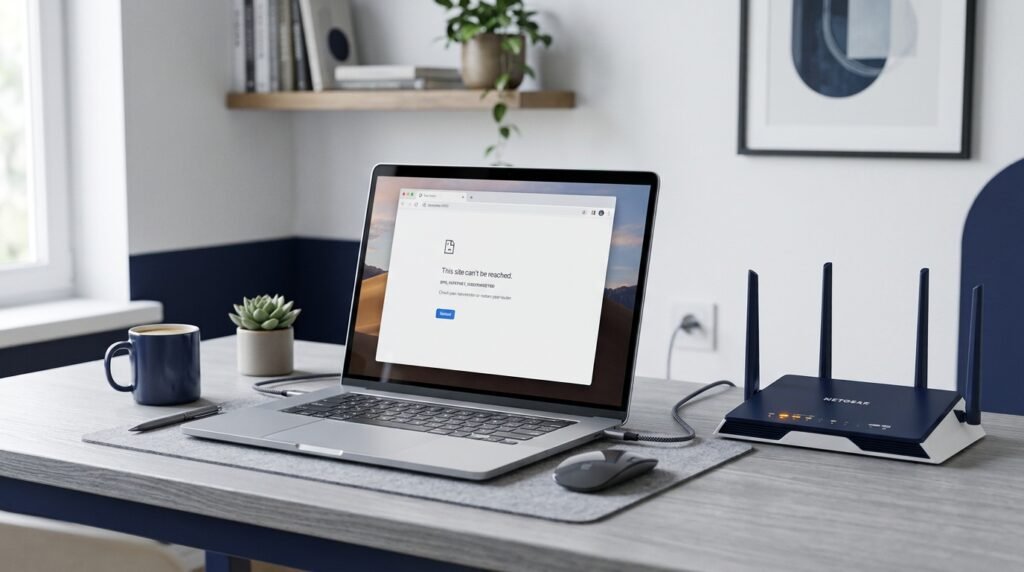
1. Poor or Unstable Internet Connection
A weak internet connection can interrupt communication between your device and a website’s server.
When this happens, the request may not reach the server correctly, or the response may not arrive completely.
This issue is common when using public Wi-Fi, mobile data with a weak signal, or an unstable home internet connection.
Example 3:
You are using a public Wi-Fi network to open a website. The connection drops for a few seconds, and the browser displays Invalid Response Received.
In this situation, reconnecting to a stable network may solve the problem.
2. Website Server Problems
A website server handles requests from visitors and sends information back to their browsers.
If the server is overloaded, temporarily unavailable, or facing a technical problem, it may fail to return the expected response.
This is often outside the visitor’s control.
Example 4:
You visit a popular website during a major online sale. Thousands of people are trying to access it at the same time, and the website starts showing an error.
The server may be struggling to handle the high number of requests.
3. Expired Login Session
Websites often use login sessions to keep users signed in.
A session may expire after a period of inactivity, after a security change, or when the website cannot verify your login information.
Sometimes, the website does not handle the expired session correctly and displays an unexpected response.
Example 5:
You leave your online account open for several hours. When you return and click a button, the website displays an error instead of loading your account page.
Signing out and signing in again may fix this issue.
4. Browser Cache and Cookies Problems
Browsers save temporary website information to help pages load faster. This stored information is called cache.
Cookies are small pieces of data that websites use to remember settings, login sessions, and other information.
Old or damaged cached data and cookies can sometimes cause website loading problems.
For example, your browser may use an outdated version of a page even after the website has been updated.
5. Incorrect API Response
An API (Application Programming Interface) allows different applications and services to communicate with each other.
For example, an online store may use a payment provider’s API to process customer payments.
The application expects a response in a certain format. If the API returns missing, incomplete, or unexpected information, the application may fail.
Example 6:
An online store sends a payment request to an external payment service. The service returns an unexpected response, so the checkout system cannot complete the transaction.
This type of issue may require help from the website’s developer or technical support team.
6. Incorrect JSON Response
JSON (JavaScript Object Notation) is a common data format used by websites and applications.
A system may expect valid JSON data but receive something different, such as:
- An incomplete JSON message.
- Incorrect JSON syntax.
- An HTML error page.
- Empty response data.
- Unexpected text from a server.
This can cause an application to fail while reading the response.
7. Outdated Browser or Application
Older browser versions and apps may have compatibility problems with newer website features or server settings.
An outdated application may also contain bugs that have already been fixed in a newer version.
Updating the browser or app can sometimes solve the issue.
8. Firewall, VPN, or Security Restrictions
A VPN changes the network route used by your device. A firewall helps block unwanted network traffic.
Some websites restrict certain connections or block requests that appear unusual.
A VPN, firewall, proxy, or security extension may sometimes interfere with communication between your device and the website.
Do not turn off important security protection permanently. If you suspect a VPN or browser extension is causing the problem, test the website with that feature temporarily disabled, where safe and permitted.
How to Fix Invalid Response Received
Try these solutions one at a time. After each step, reload the website or reopen the app to check whether the problem has gone away.
1. Check Your Internet Connection
Start with your internet connection because it is one of the easiest things to test.
Follow these steps:
- Open another website.
- Check whether it loads properly.
- Switch from Wi-Fi to mobile data, if available.
- Restart your router if your home connection is unstable.
- Try opening the affected website again.
If other websites also fail to load, your internet connection may be the problem.
Example 7:
A website displays an error on your home Wi-Fi but works normally when you switch to mobile data.
This suggests that your Wi-Fi connection or network settings may be causing the issue.
2. Refresh the Website
Sometimes, the error appears because a temporary request failed.
A simple refresh may send a new request and allow the page to load correctly.
On Windows, press Ctrl + R or F5 to refresh the page.
On Mac, press Command + R.
If the error continues, move to the next solution.
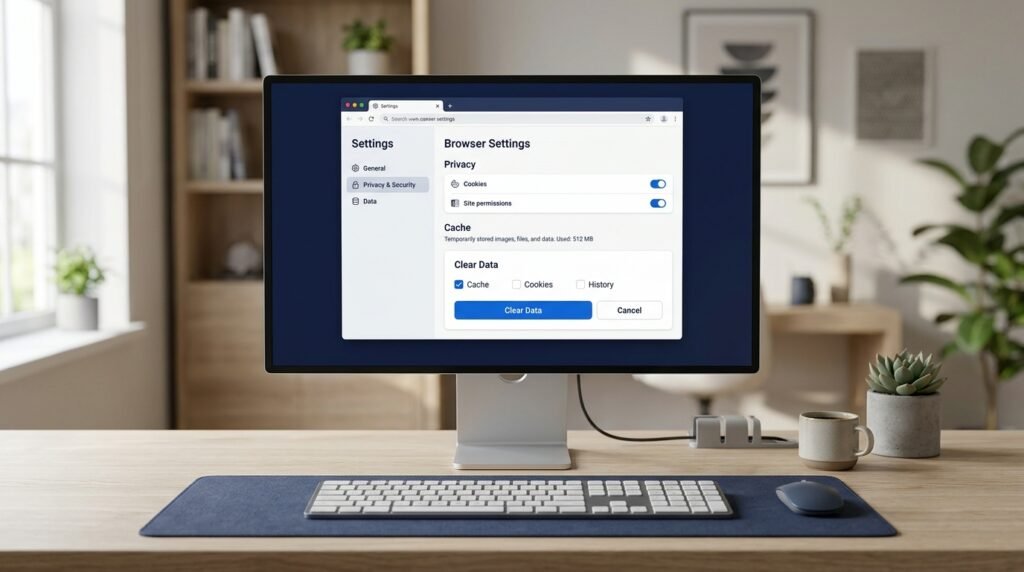
3. Clear Browser Cache and Cookies
Clearing old browser data can fix problems caused by damaged or outdated website information.
In Google Chrome:
- Open Chrome.
- Click the three-dot menu in the top-right corner.
- Select Settings.
- Open Privacy and Security.
- Select Delete browsing data.
- Choose a suitable time range.
- Select Cached images and files.
- Select Cookies and other site data if needed.
- Click Delete data.
Be aware that deleting cookies may sign you out of websites.
Try opening the affected website again after clearing the data.
4. Open the Website in Incognito Mode
An Incognito window opens a private browsing session that does not use your regular browsing history and existing site cookies.
It can help identify whether a browser extension or stored website data is causing the problem.
In Chrome, press Ctrl + Shift + N on Windows.
Then open the affected website.
If it works in Incognito mode, check your regular browser’s cookies, cache, and extensions.
5. Update Your Browser
An outdated browser may have trouble processing some website responses.
To update Google Chrome:
- Open Chrome.
- Click the three-dot menu.
- Select Help.
- Click About Google Chrome.
- Allow Chrome to check for updates.
- Restart the browser if an update is available.
You can follow a similar process in other browsers.
6. Disable Problematic Browser Extensions
Some browser extensions can block scripts, modify website requests, or interfere with page loading.
Common examples include:
- Ad blockers.
- Privacy extensions.
- Script blockers.
- VPN extensions.
- Security extensions.
Temporarily disable extensions one at a time and test the website again.
If the website works after disabling one extension, that extension may be causing the issue. Check its settings or contact its developer before removing important security protection.
7. Turn Off Your VPN Temporarily
A VPN can sometimes cause connection problems with certain websites.
If you are using a trusted VPN service, disconnect temporarily and try opening the website again.
If the website works without the VPN, check your VPN settings or contact its support team.
Avoid using an unsecured network or sharing private information just to test a connection.
8. Restart Your Device
Restarting your computer or phone can close background processes and refresh network connections.
Follow these steps:
- Save your work.
- Close open applications.
- Restart your device.
- Connect to the internet again.
- Open the affected website or app.
This simple step can help with temporary software or connection problems.
9. Update or Reinstall the App
If the error appears inside a mobile application, check whether a newer version is available.
For Android or iPhone:
- Open Google Play Store or Apple App Store.
- Search for the affected application.
- Check for an available update.
- Install the update.
- Restart the app.
If updating does not help, consider reinstalling it.
Before removing an app, make sure your account information and important data are backed up.
10. Contact Website Support
If none of the solutions work, the problem may be on the website’s server or technical side.
Contact the website’s support team and provide:
- The exact error message.
- The page where the error appears.
- Your browser or app name.
- Your device type.
- The time when the issue happened.
- A screenshot, if it does not contain private information.
This information can help the support team investigate the issue.
How to Fix Invalid Response Received on Different Devices
The steps may vary depending on where the error appears.
On Windows PC
If you see this error on a Windows computer:
- Check your internet connection.
- Refresh the affected page.
- Clear browser cache and cookies.
- Test the website in another browser.
- Restart your computer.
- Check whether a firewall or VPN is interfering.
If the issue affects several websites, check your network connection and security settings.
On Android Phones
If an Android app displays this error:
- Check your mobile data or Wi-Fi.
- Close and reopen the app.
- Restart your phone.
- Update the application.
- Clear the app cache through Android settings, if available.
- Contact the app’s support team if the problem continues.
Avoid clearing app storage unless you know your data is backed up. This action may remove saved information or sign you out.
On iPhone
If the error appears on an iPhone:
- Check your internet connection.
- Close and reopen the app.
- Restart your iPhone.
- Update the app through the App Store.
- Update iOS if an update is available.
- Reinstall the app if necessary and safe for your saved data.
If the issue happens in Safari, try clearing website data or testing the page in another browser.
On Google Chrome
If Chrome displays this error:
- Refresh the page.
- Open an Incognito window.
- Clear cached files and cookies.
- Disable extensions temporarily.
- Update Chrome.
- Test the website in another browser.
If the same website fails in every browser, the problem may be related to the website or its server.
Is Invalid Response Received the Same as a 502 Bad Gateway Error?
No. These messages can be related, but they do not always mean the same thing.
Invalid Response Received is a general error message. It can appear when an application receives unexpected or incomplete information.
502 Bad Gateway is a specific HTTP status code. It means a server acting as a gateway or proxy received an invalid response from another server.
Here is a simple comparison:
| Error | Meaning |
|---|---|
| Invalid Response Received | The application received information it could not process. |
| 502 Bad Gateway | A gateway or proxy received an invalid response from an upstream server. |
| 500 Internal Server Error | The server encountered an unexpected problem. |
| 503 Service Unavailable | The server is temporarily unable to handle the request. |
| 504 Gateway Timeout | A gateway or proxy did not receive a timely response. |
For example, a website may display a custom message such as Invalid Response Received when its connection to another service fails. However, the message alone does not prove that the underlying HTTP status code is 502.
How Website Owners and Developers Can Fix This Error
If you manage a website or application, the cause may be different from a normal visitor’s browser problem.
Developers should check what the server actually returned instead of relying only on the error message.

1. Check Server Logs
Review application and server logs around the time the error occurred.
Look for:
- Failed requests.
- Server exceptions.
- Connection timeouts.
- Authentication failures.
- Unexpected response codes.
- Errors from external services.
These details can help identify where the request failed.
2. Check the HTTP Status Code
The HTTP status code tells the application whether a request succeeded or failed.
Check the actual response code in the browser’s developer tools or application logs.
For example, a 400 response may point to a request problem, while a 500 response points to a server-side problem.
Do not assume every invalid response is a 502 error.
3. Validate JSON Responses
If your application expects JSON, check whether the returned data is valid JSON.
Make sure:
- The JSON syntax is correct.
- Required fields are present.
- The response is complete.
- The content type matches the response.
- The application handles empty responses safely.
A server returning an HTML error page instead of JSON can cause a parsing failure.
4. Check API Endpoints
An incorrect API endpoint can cause unexpected responses.
Check:
- The API URL.
- The HTTP request method.
- Authentication details.
- Required request parameters.
- API permissions.
- Response format.
- API service availability.
For example, an application may send a POST request to an endpoint that only accepts GET requests.
5. Check Server and Gateway Settings
If your website uses a reverse proxy, CDN, or gateway, check its settings.
Look at:
- Upstream server availability.
- Proxy timeout settings.
- SSL/TLS configuration.
- DNS records.
- Server connection limits.
- Request and response size limits.
A configuration problem between the gateway and the main server may cause unexpected responses.
6. Check External Services
Many websites rely on third-party services for payments, email, authentication, and other features.
If one of these services is unavailable, your website may receive an unexpected response.
Test the affected integration and review its error logs.
7. Add Better Error Handling
Applications should be able to handle unexpected responses without crashing.
Developers should validate incoming data, check HTTP status codes, handle invalid JSON, and provide clear messages to users.
A helpful error message should explain what happened and suggest the next step without exposing private server information.
Example 8:
A developer discovers that a payment API returns an HTML error page instead of the expected JSON response. The developer updates the error-handling code to detect this response and show a clear checkout error.
This helps users avoid seeing confusing technical messages and gives the development team useful details for troubleshooting.
How to Prevent Invalid Response Received Errors
You cannot prevent every server or network problem, but you can reduce the chances of seeing this error.
Try these habits:
- Keep your browser and apps updated.
- Use a stable internet connection.
- Clear old browser data when pages behave strangely.
- Avoid installing unknown browser extensions.
- Use trusted VPN services.
- Keep your device software updated.
- Avoid opening suspicious websites.
- Contact support if an error keeps returning.
Website owners should also monitor server health, test API integrations, validate response formats, and review application logs.
Frequently Asked Questions
1. What does Invalid Response Received mean?
It means a website, app, or device received information that it could not process correctly. This may happen because of a network issue, server problem, expired session, or unexpected data format.
2. Is Invalid Response Received a server error?
It can be caused by a server problem, but not always. Browser settings, internet connections, expired sessions, and application issues can also cause it.
3. How do I fix Invalid Response Received?
Start by checking your internet connection and refreshing the page. If the error continues, clear browser cache, test Incognito mode, update your browser, and restart your device.
4. Why does my website say Invalid Response Received?
Your website may have received an incomplete or unexpected response from its server or an external service. Check your server logs, HTTP status codes, and API connections to find the cause.
5. Does clearing cache fix Invalid Response Received?
It can help if outdated or damaged browser data is causing the issue. However, clearing cache will not fix a server outage or a broken API connection.
6. Why am I getting Invalid Response Received on my phone?
Your phone may have an unstable internet connection, an outdated app, damaged temporary data, or a problem with the app’s server. Restart the app, check your connection, and install available updates.
7. Is Invalid Response Received the same as 502 Bad Gateway?
No. A 502 error is a specific HTTP status code involving a gateway or proxy. Invalid Response Received is a general message that can have several different causes.
8. Can a VPN cause Invalid Response Received?
Yes. Some VPN connections may interfere with website access or trigger network restrictions. Test the website without your VPN if it is safe to do so.
9. Why does Invalid Response Received keep appearing?
The issue may be caused by a recurring network problem, server failure, outdated application, or incorrect API response. If it keeps happening on one website, contact its support team.
10. Should I contact technical support for this error?
Yes, if basic troubleshooting does not help. Provide the exact error message, device details, browser or app name, and a screenshot without private information.
Conclusion
The Invalid Response Received error means that a website, app, or device has received information it cannot process correctly. It may happen because of an unstable internet connection, server problems, browser data, expired sessions, or incorrect API responses.
Start with simple fixes such as checking your connection, refreshing the page, clearing browser data, and updating your app. If the error continues, the website’s technical team may need to investigate its server or API settings.
The best approach is to identify where the problem occurs before trying more advanced fixes. This can save time and help you get back to using the website or app.

Emily Carter (Content Writer & Communication Specialist) is a content writer and communication specialist at AllTypeInfo.com. She writes clear, practical, and easy-to-follow guides on email responses, message replies, writing templates, and everyday communication tips. Her goal is to help readers communicate with confidence in both personal and professional settings.