If you play Call of Duty or another first-person shooter with a controller, you may have seen the Aim Response Curve Type setting. It gives you three main options: Standard, Linear, and Dynamic. But what do these options actually change?
Your aim response curve affects how your right analog stick controls your character’s aim. It changes how quickly your crosshair moves when you push the stick.
Choosing the right setting can make aiming feel more natural and predictable. In this guide, you’ll learn what each option does, how they differ, and which one you should try based on your experience and play style.
What Is Aim Response Curve Type?
Aim Response Curve Type is a controller setting that controls how your right analog stick input translates into aiming speed in a game.
In simple words, it decides how your aim responds when you move the right stick.
For example, a small stick movement may produce a slow camera movement, while pushing the stick further may increase the aiming speed. Different response curves change how this relationship works.
This setting is commonly found in games such as Call of Duty: Modern Warfare and Call of Duty: Warzone.
There are three common options:
- Standard: Uses a traditional power curve that gradually changes aiming speed.
- Linear: Creates a direct relationship between stick movement and aiming speed.
- Dynamic: Uses a reverse S-curve to change how aiming responds at different stick positions.
The best option depends on how you control your aim and how comfortable you feel with each setting.
Example 1:
You move your right analog stick slightly to follow an enemy running across the screen. Your aim response curve determines how quickly your crosshair reacts to that movement.
This shows why the setting matters. It changes the feel of your aiming even when your sensitivity number stays the same.
What Are the Three Types of Aim Response Curves?
The three main types are Standard, Linear, and Dynamic. Each option changes the relationship between your controller input and the speed of your aim.
Let’s look at each one.
1. Standard Aim Response Curve
Standard is the traditional response curve used in many Call of Duty games.
It uses a power curve, meaning the relationship between stick movement and aiming speed is not a direct one-to-one match.
Small stick movements generally produce slower aiming responses. As you push the stick further, the aiming speed increases.
Main features:
- Offers a familiar aiming feel.
- Provides gradual changes in aiming speed.
- Can suit players who prefer controlled stick movements.
- Works as a starting point for new controller players.
Example 2:
A beginner spots an enemy behind a building and gently moves the right analog stick to line up a shot. The Standard curve provides a gradual response as the stick moves.
This example shows why Standard can be a comfortable starting option for players who are still learning controller aiming.
2. Linear Aim Response Curve
Linear creates a direct relationship between your right stick movement and your aiming response.
If you move the stick halfway, the game responds in a direct proportion to that input. There is no curved response mapping like the Standard or Dynamic options.
Main features:
- Direct stick-to-aim response.
- Predictable input behavior.
- No additional curve-based acceleration pattern.
- Can suit players who prefer consistent aiming input.
However, Linear may feel difficult at first if you are used to Standard. Small movements can feel different, so give yourself time to adjust.
Example 3:
A player moves the right stick a small distance to track an enemy. With Linear selected, the aiming response follows the direct relationship between the stick input and aim rate.
This option may appeal to players who want a straightforward aiming response and are comfortable adjusting their sensitivity.
3. Dynamic Aim Response Curve
Dynamic uses a reverse S-curve mapping.
Unlike Linear, it does not follow a direct relationship between stick movement and aiming speed. It changes the response at different points of the stick’s movement.
This can provide a more responsive feel for some players, especially those who make quick adjustments while aiming.
Main features:
- Uses reverse S-curve mapping.
- Changes aiming response at different stick positions.
- Can feel responsive for quick aiming adjustments.
- Often preferred by experienced FPS players.
Dynamic is popular among some Call of Duty and Warzone players, but it is not automatically the best choice for everyone.
Example 4:
A player is fighting an opponent at close range and quickly moves the right stick to adjust their crosshair. Dynamic may feel more responsive to that player, depending on their sensitivity and controller technique.
This example shows why some players prefer Dynamic for fast-paced matches.
Standard vs Linear vs Dynamic: Main Differences
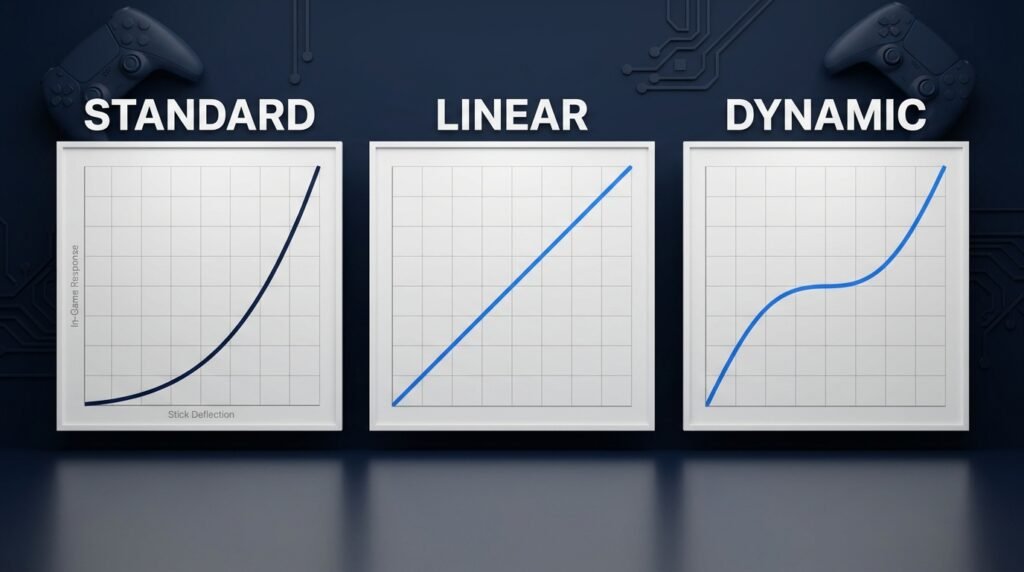
The main difference between these three settings is how they translate right stick movement into aiming speed.
| Feature | Standard | Linear | Dynamic |
|---|---|---|---|
| Response mapping | Power curve | Direct mapping | Reverse S-curve |
| Aiming feel | Gradual | Direct | Variable |
| Small movements | Gradual response | Direct response | Curve-based response |
| Learning curve | Familiar for many players | May need adjustment | May need adjustment |
| Best starting point | Beginners | Players who prefer direct input | Players who prefer a different response curve |
No single option guarantees better accuracy. Your sensitivity, controller condition, deadzone, and personal technique also affect your aim.
Example 5:
Two players use the same horizontal sensitivity of 6. One chooses Standard, while the other selects Dynamic. Their aim can still feel different because the response curve changes how their stick input is translated.
This is why changing only the sensitivity number does not always give you the aiming feel you want.
Which Aim Response Curve Type Is Best?
There is no universal best aim response curve type. The right choice depends on your aiming habits, experience, and the game you play.
Here is a simple guide:
Best for Beginners: Standard
Choose Standard if:
- You are new to controller gaming.
- You prefer gradual aiming movements.
- You want a familiar starting point.
- You are still learning how sensitivity works.
It is a reasonable starting option because many players are already familiar with this type of response.
Best for Direct Input: Linear
Choose Linear if:
- You prefer a direct stick response.
- You want a predictable input relationship.
- You are comfortable adjusting your sensitivity.
- You want to test a different feel from Standard.
Linear is worth testing if you prefer a straightforward connection between your thumb movement and aim input.
Best for Players Who Prefer a Dynamic Feel: Dynamic
Choose Dynamic if:
- You play fast-paced FPS games.
- You make frequent aiming adjustments.
- You prefer reverse S-curve mapping.
- You are comfortable testing different controller settings.
Some experienced players prefer Dynamic, but results depend on individual preferences and the game.
Example 6:
A player who mainly fights at close range may prefer Dynamic, while someone who takes slower shots at distant targets may feel more comfortable with Standard.
Neither choice is automatically better. Test both settings in the same game mode before making a decision.
How to Change Aim Response Curve Type in Call of Duty
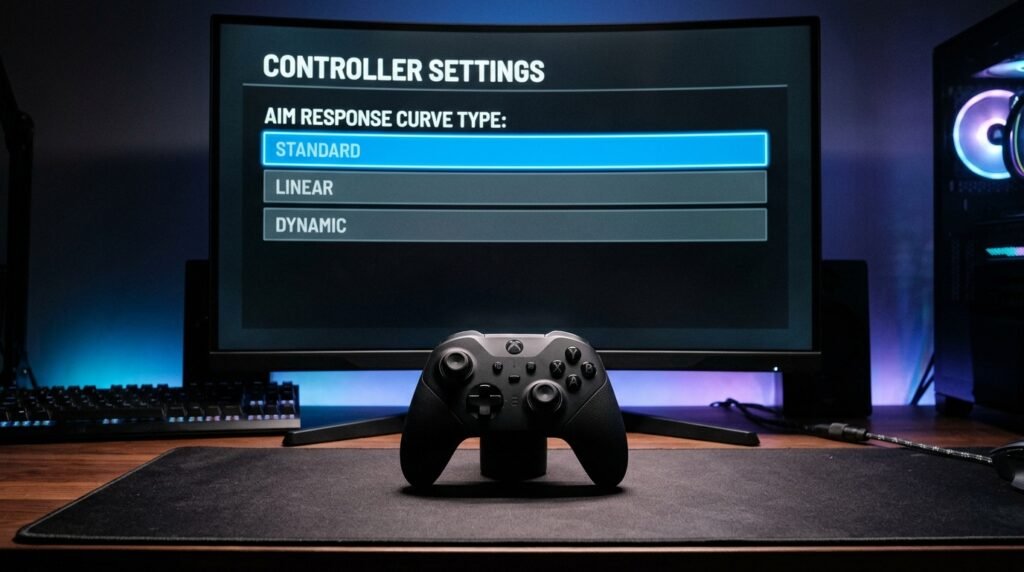
You can change this setting through the controller settings menu in supported Call of Duty games.
The exact menu names may differ between game versions.
Follow these general steps:
- Open Call of Duty on your console or PC.
- Go to the main Settings menu.
- Select the Controller tab.
- Find the Aiming or Aiming Advanced Settings section.
- Look for Aim Response Curve Type.
- Select the setting you want to try.
- Choose Standard, Linear, or Dynamic.
- Return to the game and test your aiming.
Some versions place this option inside an advanced controller settings menu.
Example 7:
A player currently uses Standard but wants to test Linear. They open the controller settings, change the response curve, and enter a private match to check how the new setting feels.
Testing in a private match helps you compare the settings without the pressure of a competitive match.
Does Aim Response Curve Type Affect Sensitivity?
Yes, it can change how your sensitivity feels, even if you keep the same sensitivity values.
However, the response curve and sensitivity are two different settings.
Sensitivity controls how fast your view or aim moves based on the game’s sensitivity values.
Aim response curve controls how the game translates analog stick movement into aiming speed.
For example, you could use:
- Horizontal Sensitivity: 6
- Vertical Sensitivity: 6
- Aim Response Curve Type: Standard
You could then change only the response curve to Linear. Your sensitivity numbers would remain the same, but the aiming response would feel different.
Example 8:
A player feels that their aim is too slow with Standard. Instead of increasing sensitivity immediately, they test Linear to see whether a different response curve feels more comfortable.
Changing one setting at a time makes it easier to find what works.
Tips for Choosing the Right Aim Response Curve

If you are unsure which response curve to use, follow these practical tips.
1. Start With One Setting
Pick one curve and use it for a few matches. Avoid switching between all three after every match.
Give yourself time to adjust to the new aiming feel.
2. Keep Your Sensitivity Consistent
When comparing response curves, keep your horizontal and vertical sensitivity the same.
This helps you identify the effect of the response curve rather than confusing it with a sensitivity change.
3. Test in a Private Match
Use a private match or practice mode, if available.
Try tracking moving targets, turning quickly, and aiming at stationary targets.
4. Check Your Controller Deadzone
A deadzone is the amount of stick movement that the game ignores before registering an input.
If your crosshair moves without touching the right stick, your controller may have stick drift.
Adjusting the deadzone can help, but setting it too low may make unwanted movement more noticeable.
5. Avoid Copying Every Professional Player Setting
Professional players have different aiming habits, controllers, and preferences.
A setting that works well for one player may feel uncomfortable for another.
Example 9:
A player watches a competitive gamer using Dynamic and copies the same setting. After several matches, the player finds Standard easier to control. They switch back because it feels more natural.
The best setting is the one that lets you aim comfortably and consistently.
Common Mistakes When Changing Aim Response Curve
Changing your response curve can affect your aiming habits. Avoid these common mistakes.
Changing Too Many Settings at Once
If you change sensitivity, deadzone, and response curve together, you may not know which change affected your aim.
Change one setting at a time.
Expecting Instant Improvement
A new response curve may feel strange during your first few matches.
Give yourself enough practice time before deciding whether it works.
Ignoring Stick Drift
If your controller has stick drift, changing the response curve will not fix the hardware problem.
Check your right analog stick and adjust the deadzone if needed.
Copying Settings Without Testing
A popular controller setup is only a starting point. Your own comfort and aiming results matter more.
Confusing Aim Assist With Aim Response Curve
These are two different settings.
Aim Assist helps controller players track or stay on a target through game-specific assistance.
Aim Response Curve controls how the game translates right stick movement into aiming speed.
Changing your response curve does not automatically change your aim assist settings.
Frequently Asked Questions About Aim Response Curve Type
What does aim response curve type mean?
Aim response curve type controls how your right analog stick input translates into aiming speed. It affects how your crosshair responds when you move the stick.
What are the three aim response curve types?
The three common options are Standard, Linear, and Dynamic. Standard uses a power curve, Linear uses direct mapping, and Dynamic uses reverse S-curve mapping.
Is Linear better than Standard?
Not for everyone. Linear provides a direct input relationship, while Standard offers a traditional power curve. Your preferred option depends on your aiming habits.
Is Dynamic good for Call of Duty?
Dynamic is a popular option among some Call of Duty players because of its reverse S-curve mapping. However, it may take time to adjust to, and it does not guarantee better aim.
Which aim response curve is best for beginners?
Standard is a reasonable starting point for beginners. It offers a familiar aiming response and lets new players get used to controller movement.
Does aim response curve affect aim assist?
No. Aim Response Curve and Aim Assist are separate controller settings. The response curve changes how stick input affects aiming speed, while aim assist provides game-specific aiming assistance.
Can I use the same sensitivity with all three response curves?
Yes. You can keep the same horizontal and vertical sensitivity values while testing Standard, Linear, and Dynamic. However, each curve may feel different.
Can changing the aim response curve improve accuracy?
It may help you find an aiming feel that suits your technique. However, accuracy also depends on practice, sensitivity, controller condition, deadzone, and other game settings.
Conclusion
The aim response curve type setting changes how your right analog stick controls aiming speed. The three main options are Standard, Linear, and Dynamic, and each offers a different aiming response.
Standard is a good starting point for beginners, Linear suits players who prefer direct input, and Dynamic may appeal to players who like reverse S-curve mapping.
There is no single best setting for every player. Start with one option, keep your sensitivity consistent, and test it in a private match. Choose the response curve that makes your aim feel comfortable and consistent.

Emily Carter (Content Writer & Communication Specialist) is a content writer and communication specialist at AllTypeInfo.com. She writes clear, practical, and easy-to-follow guides on email responses, message replies, writing templates, and everyday communication tips. Her goal is to help readers communicate with confidence in both personal and professional settings.