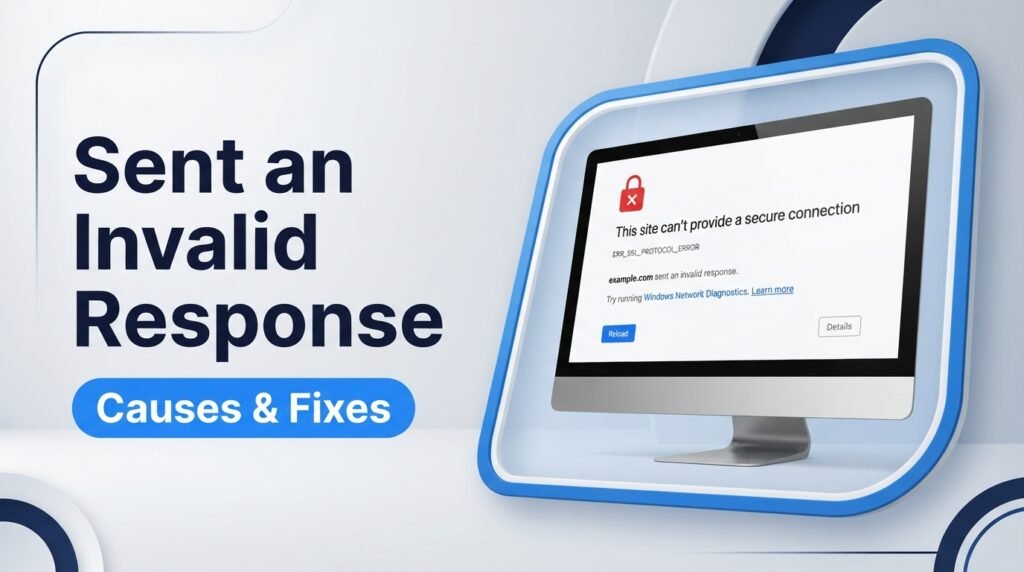
Have you ever tried to open a website in Chrome and received a message saying it sent an invalid response? This error can stop a website from loading, even when your internet connection seems fine.
The problem may come from your browser, internet connection, security software, or the website’s server. In some cases, it relates to an SSL/TLS connection error, which prevents your browser from creating a secure connection.
In this guide, you’ll learn what this error means, what causes it, and how to fix it on your computer. You’ll also find steps for website owners who need to check their server settings.
What Does Sent an Invalid Response Mean?
Sent an Invalid Response is an error message that appears when a browser receives a response it cannot process or use to complete a website connection.
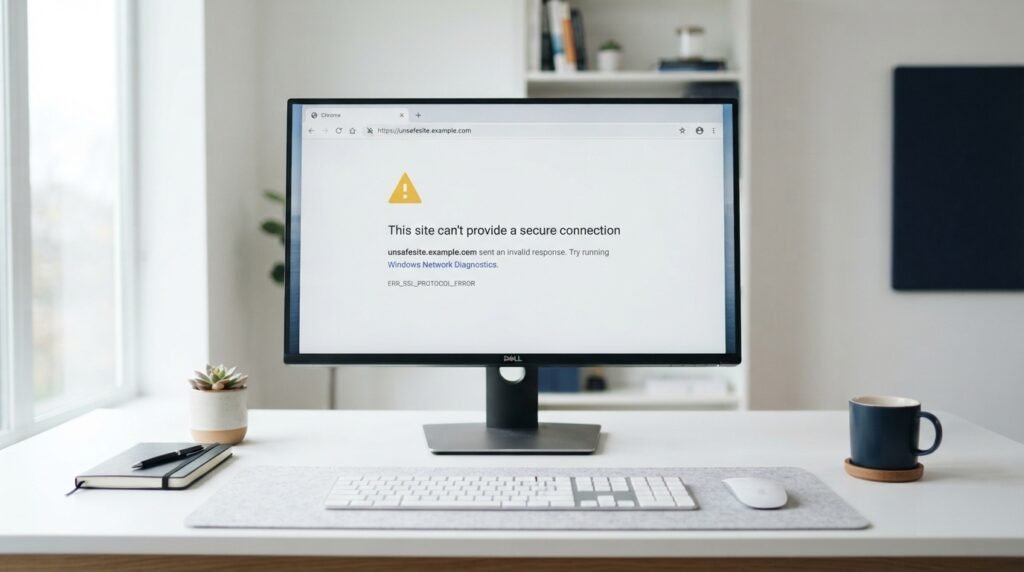
In a common Chrome secure connection error, the message appears with wording such as:
This site can’t provide a secure connection. The website sent an invalid response.
This can happen when your browser tries to create a secure HTTPS connection, but the connection process fails.
Depending on the exact message, Chrome may show an error code such as ERR_SSL_PROTOCOL_ERROR or ERR_SSL_FALLBACK_BEYOND_MINIMUM_VERSION.
These codes point to different connection problems, so checking the full error message can help you find the right fix.
What Is an SSL/TLS Connection?
SSL and TLS are security protocols that protect information sent between your browser and a website.
For example, when you sign in to an online account, these protocols help protect your login details while they travel across the internet.
A website that uses HTTPS needs a working secure connection. If the browser and server cannot complete this connection, the page may fail to load.
Where Does This Error Appear?
You may see this message in:
- Google Chrome
- Microsoft Edge
- Brave
- Other Chromium-based browsers
The exact message and error code may differ between browsers.
Example 1:
You open an online shopping website in Chrome, but the page displays a message saying the website sent an invalid response.
This may mean Chrome could not complete the secure connection. The problem could be on your device, network, or the website’s server.
What Causes the Sent an Invalid Response Error?
Several issues can cause this error. Here are the most common ones.
1. SSL/TLS Connection Problems
A website needs correct SSL/TLS settings to accept secure connections.
If its server has an incorrect configuration, Chrome may not be able to complete the connection.
This can happen because of:
- Incorrect HTTPS settings.
- Unsupported TLS versions.
- Problems with the server’s security setup.
- Incorrect proxy or CDN settings.
2. Incorrect Date and Time on Your Computer
Your computer uses its date and time to check security certificates.
If the clock is incorrect, some secure website connections may fail.
For example, your computer may show the wrong year or date after a system reset.
3. VPN or Proxy Interference
A VPN changes the route your internet traffic takes. A proxy server also acts as a middle point between your device and a website.
Sometimes, these services can interfere with secure connections.
This may cause an SSL error or prevent certain websites from loading.
4. Antivirus or Firewall Restrictions
Some antivirus programs check secure website traffic to block harmful connections.
However, their HTTPS scanning feature may sometimes interfere with a website’s connection.
A firewall may also block traffic that a browser needs to open a website.
5. Outdated Browser or Operating System
An outdated browser or operating system may have old security settings.
This can create problems when connecting to websites that use newer security protocols.
Keeping Chrome and your operating system updated can help prevent these issues.
6. Incorrect Website Server Configuration
Sometimes, the problem is not on your computer.
A website server may have:
- Incorrect SSL certificate settings.
- A broken HTTPS configuration.
- Incorrect TLS settings.
- A misconfigured reverse proxy.
- Problems with its hosting server.
If the same website fails on different devices and networks, the website owner may need to fix the issue.
7. Browser Extensions
Some browser extensions can affect website connections.
For example, security extensions, VPN extensions, and traffic-filtering tools may block or change certain requests.
Testing the website without extensions can help identify the problem.
How to Fix the Sent an Invalid Response Error
Try these fixes one at a time. After each step, open the website again to check whether it works.
1. Check Your Internet Connection
Start by checking whether your internet connection is working.
Open two or three other websites in your browser.
If none of them loads, your internet connection may be the problem.
Try these steps:
- Disconnect from your Wi-Fi.
- Wait for a few seconds.
- Connect again.
- Restart your router if needed.
- Open the website again.
You can also try using another internet connection, such as mobile data.
Example 2:
You cannot open a website using your home Wi-Fi, but it loads normally when you connect your laptop to your phone’s hotspot.
This suggests that your home network or router may be causing the problem rather than the website itself.
2. Check Your Computer’s Date and Time
An incorrect system clock can cause problems with secure website connections.
On Windows 11 or Windows 10:
- Open Settings.
- Select Time & Language.
- Click Date & Time.
- Turn on Set time automatically.
- Turn on Set time zone automatically, if available.
- Restart your browser.
Open the website again and check whether the error has disappeared.
3. Open the Website in Incognito Mode
Incognito mode lets you test a website without using your normal browsing session.
To open it in Chrome:
- Open Google Chrome.
- Press Ctrl + Shift + N.
- Enter the website address.
- Press Enter.
If the website opens in Incognito mode, an extension or browser data may be causing the problem.
You can then test your extensions one at a time.
4. Disable VPN or Proxy Temporarily
A VPN or proxy may interfere with the connection between your browser and a website.
Try this:
- Open your VPN application.
- Disconnect the VPN.
- Close and reopen Chrome.
- Visit the website again.
If you use a proxy, check its settings in Windows:
- Open Settings.
- Select Network & Internet.
- Click Proxy.
- Review your proxy settings.
- Turn off a manually enabled proxy only if you do not need it.
If the website works after this test, check your VPN or proxy settings before using it again.
5. Clear Browser Cache and Cookies
Chrome stores website files and cookies to help pages load faster.
Sometimes, old or damaged browser data can cause loading problems.
To clear it:
- Open Chrome.
- Press Ctrl + Shift + Delete.
- Select a suitable time range.
- Choose Cached images and files.
- Select Cookies and other site data if needed.
- Click Delete data.
Be aware that clearing cookies may sign you out of websites.
Open the website again after clearing the data.
6. Temporarily Test Your Antivirus Protection
Some antivirus programs include an HTTPS scanning feature.
This feature checks secure website traffic, but it can sometimes interfere with connections.
To test whether it is causing the error:
- Open your antivirus settings.
- Find its HTTPS scanning or encrypted connection scanning option.
- Temporarily turn off that feature, if the software allows it.
- Test the website.
- Turn the protection back on after the test.
Do not leave your antivirus or firewall disabled. If the problem continues, contact your antivirus provider.
7. Update Google Chrome
An outdated browser may have trouble connecting to websites with newer security settings.
Follow these steps:
- Open Google Chrome.
- Click the three-dot menu.
- Select Help.
- Click About Google Chrome.
- Allow Chrome to check for updates.
- Restart the browser if an update is installed.
Try opening the website again.
8. Update Windows
Windows updates can include security and network fixes.
To check for updates:
- Open Windows Settings.
- Select Windows Update.
- Click Check for updates.
- Install available updates.
- Restart your computer if required.
Then test the website again.
9. Reset Chrome Settings
If the error appears on several websites, your Chrome settings may be causing the problem.
You can restore Chrome’s default settings.
- Open Chrome.
- Click the three-dot menu.
- Select Settings.
- Open Reset settings.
- Select Restore settings to their original defaults.
- Confirm the reset.
This process can disable extensions and reset startup pages and other settings. It does not delete saved bookmarks or passwords.
Test the website after the reset.
10. Contact the Website Owner
If none of the fixes works, the website server may be causing the error.
Try opening the same website on:
- Another computer.
- Another browser.
- A different internet connection.
- A mobile phone using mobile data.
If the website fails everywhere, contact its support team or website owner.
They may need to check their SSL certificate, TLS configuration, hosting server, or network settings.
How to Fix Sent an Invalid Response as a Website Owner
If you own the website, you may need to check your hosting and server settings instead of changing your browser.

Here are some areas to review.
1. Check Your SSL Certificate
Make sure your website has a valid SSL certificate.
Check the following:
- The certificate is active.
- The certificate matches your domain.
- The full certificate chain is installed.
- The certificate is not expired.
- HTTPS is enabled correctly.
If you use managed WordPress hosting, contact your hosting provider if you cannot check these settings yourself.
2. Check Your TLS Settings
TLS helps create secure connections between browsers and web servers.
Check whether your server supports modern TLS versions, such as TLS 1.2 and TLS 1.3.
Old or incorrect protocol settings can prevent browsers from connecting.
3. Review Your Server and Proxy Settings
If your website uses a reverse proxy, CDN, or hosting firewall, check its HTTPS configuration.
Make sure the proxy sends requests to the correct server and uses the right connection protocol.
Incorrect settings between your CDN and hosting server may cause connection failures.
4. Check Your Hosting Server Logs
Server logs can help identify connection and configuration problems.
Ask your hosting provider to review:
- SSL/TLS handshake errors.
- Port 443 configuration.
- Server connection failures.
- Proxy errors.
- Recent server configuration changes.
These details can help the technical team find the source of the problem.
Example 3:
A WordPress website works with HTTP but shows an SSL connection error when visitors use HTTPS.
The website owner should ask the hosting provider to check the SSL certificate and HTTPS configuration. Changing random WordPress plugins may not fix a server-level issue.
How to Identify Whether the Problem Is on Your Side or the Website’s Side
You can use a few simple tests to find out where the error is coming from.
| Test | What the Result May Mean |
|---|---|
| Other websites also fail | Your device or internet connection may have a problem. |
| The website works on mobile data | Your Wi-Fi, router, or network settings may be involved. |
| The website works in Incognito mode | An extension or browser data may be involved. |
| The website fails in different browsers | The issue may be outside your normal browser settings. |
| The website fails on several devices and networks | The website server may be causing the problem. |
These tests help narrow down the cause. They do not always identify the exact fault, but they can save time.
FAQs About Sent an Invalid Response
1. What does Sent an Invalid Response mean?
It means your browser received a response it could not process to complete the website connection. In secure connection errors, the problem may involve SSL/TLS settings between the browser and server.
2. Why does Chrome say a website sent an invalid response?
Chrome may show this message because of an SSL/TLS connection failure, VPN interference, antivirus scanning, network problems, or incorrect server settings.
3. How do I fix ERR_SSL_PROTOCOL_ERROR?
Try checking your internet connection, updating Chrome, testing another network, checking your computer’s date and time, and temporarily testing VPN or antivirus interference.
4. Is Sent an Invalid Response a virus?
No. This message does not automatically mean your computer has a virus. It usually points to a connection or security protocol problem. However, you should still avoid suspicious websites.
5. Can a VPN cause an invalid response error?
Yes. A VPN can sometimes interfere with secure website connections. Disconnect it temporarily and test the website using your normal internet connection.
6. Why does a website work on my phone but not my computer?
Your computer may have different browser settings, extensions, antivirus software, or network settings. Try opening the website in Incognito mode and checking your computer’s date and time.
7. Does clearing Chrome cache fix this error?
It can help if damaged or outdated browser data is causing the issue. However, clearing the cache will not fix an incorrect SSL certificate or a server-side TLS problem.
8. Can website owners fix the Sent an Invalid Response error?
Yes. Website owners can ask their hosting provider to check the SSL certificate, TLS settings, HTTPS configuration, server logs, and proxy settings.
Conclusion
The Sent an Invalid Response error usually means your browser could not complete a website connection. It may be caused by your internet connection, browser settings, VPN, antivirus software, or the website’s server.
Start with simple fixes such as checking your internet connection, correcting your computer’s date and time, and testing the website in Incognito mode. If the same error appears on several devices and networks, contact the website owner or hosting provider.
The best way to fix the issue is to identify where the connection fails instead of changing settings at random.

Emily Carter (Content Writer & Communication Specialist) is a content writer and communication specialist at AllTypeInfo.com. She writes clear, practical, and easy-to-follow guides on email responses, message replies, writing templates, and everyday communication tips. Her goal is to help readers communicate with confidence in both personal and professional settings.